Rewards
How to Withdraw to Binance
Quick Intro
An example flow for withdrawing from Plantee to a Binance deposit address on Base using the Binance mobile app.
Last updated March 12, 2026
This article is an example of how to withdraw using the Binance mobile app.
Use Binance’s deposit flow to find the correct Base deposit address before entering it into Plantee.
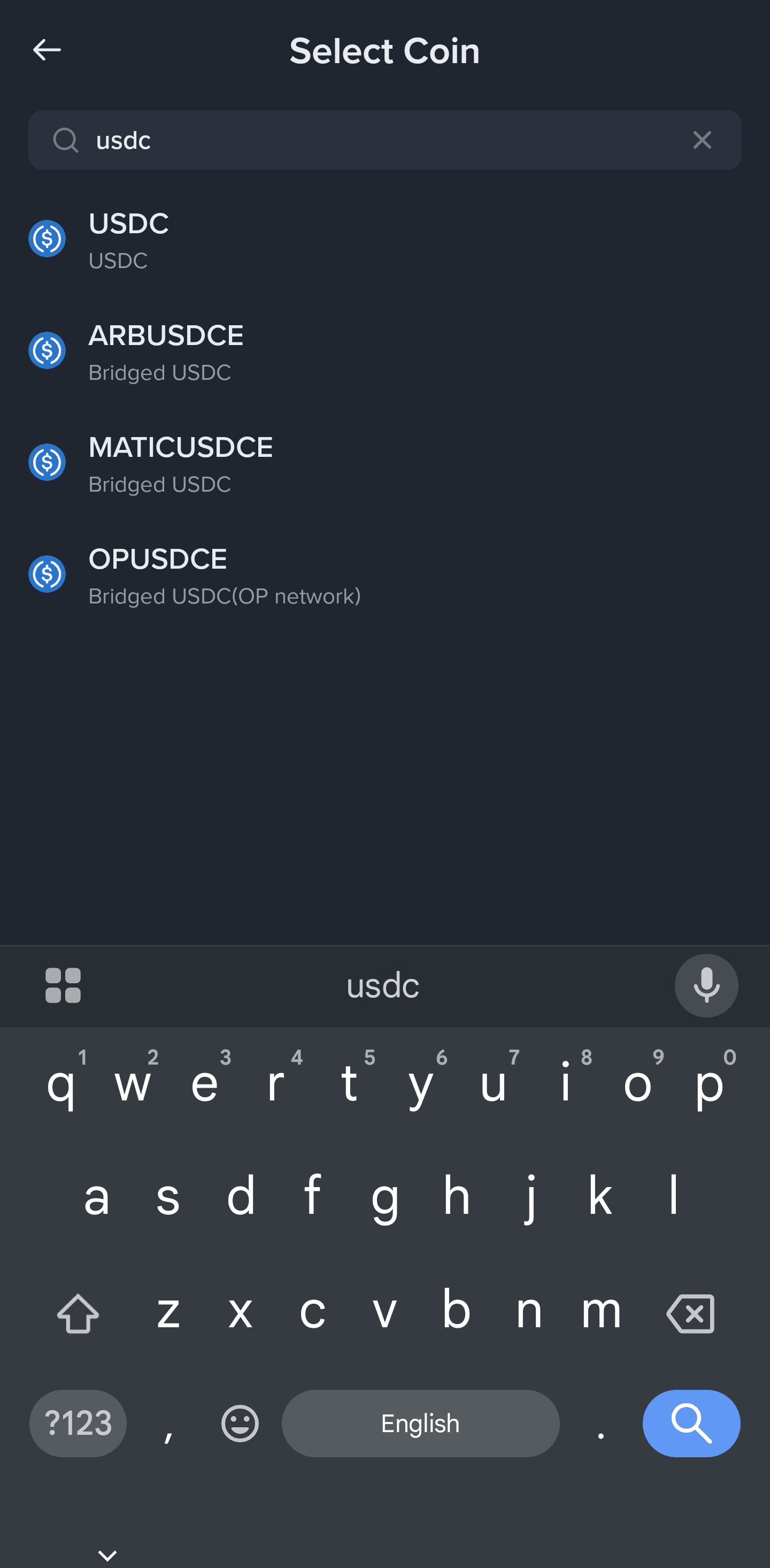
Make sure you choose USDC and then Base before you copy the deposit address.
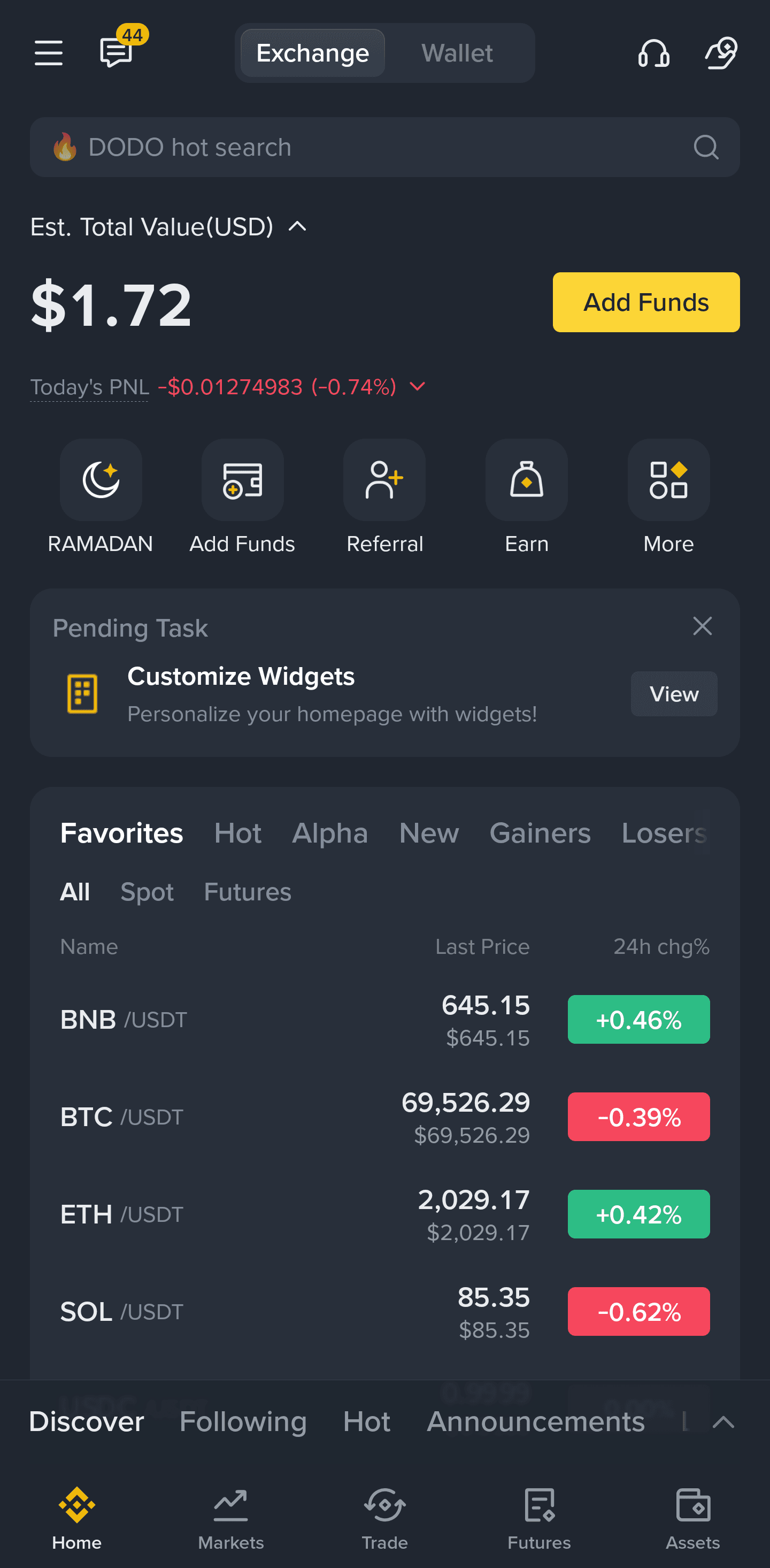
Step 1: Tap Add Funds
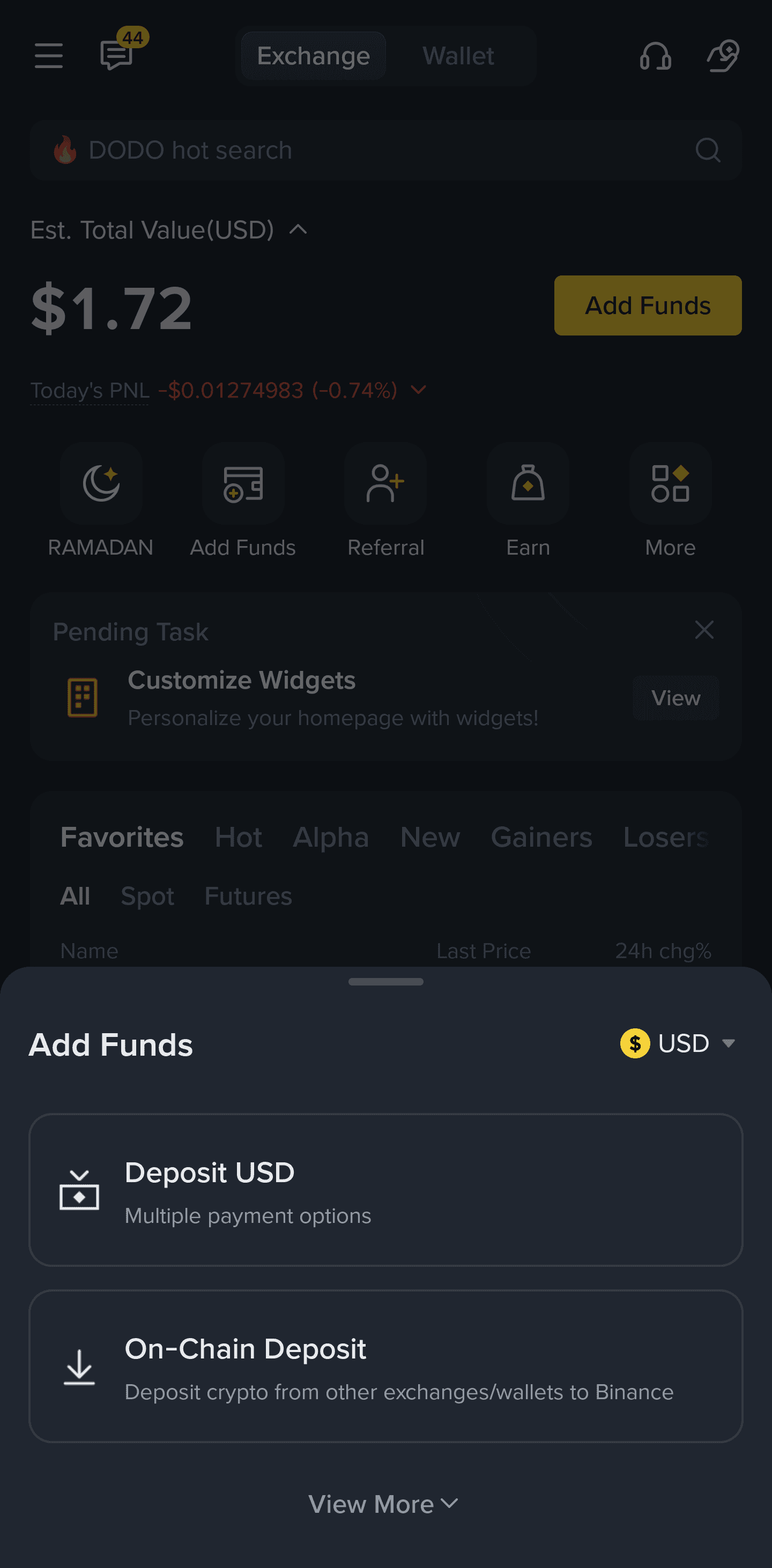
Step 2: Select On-Chain Deposit
Step 3: Search for and select USDC
Step 4: Select the Base network
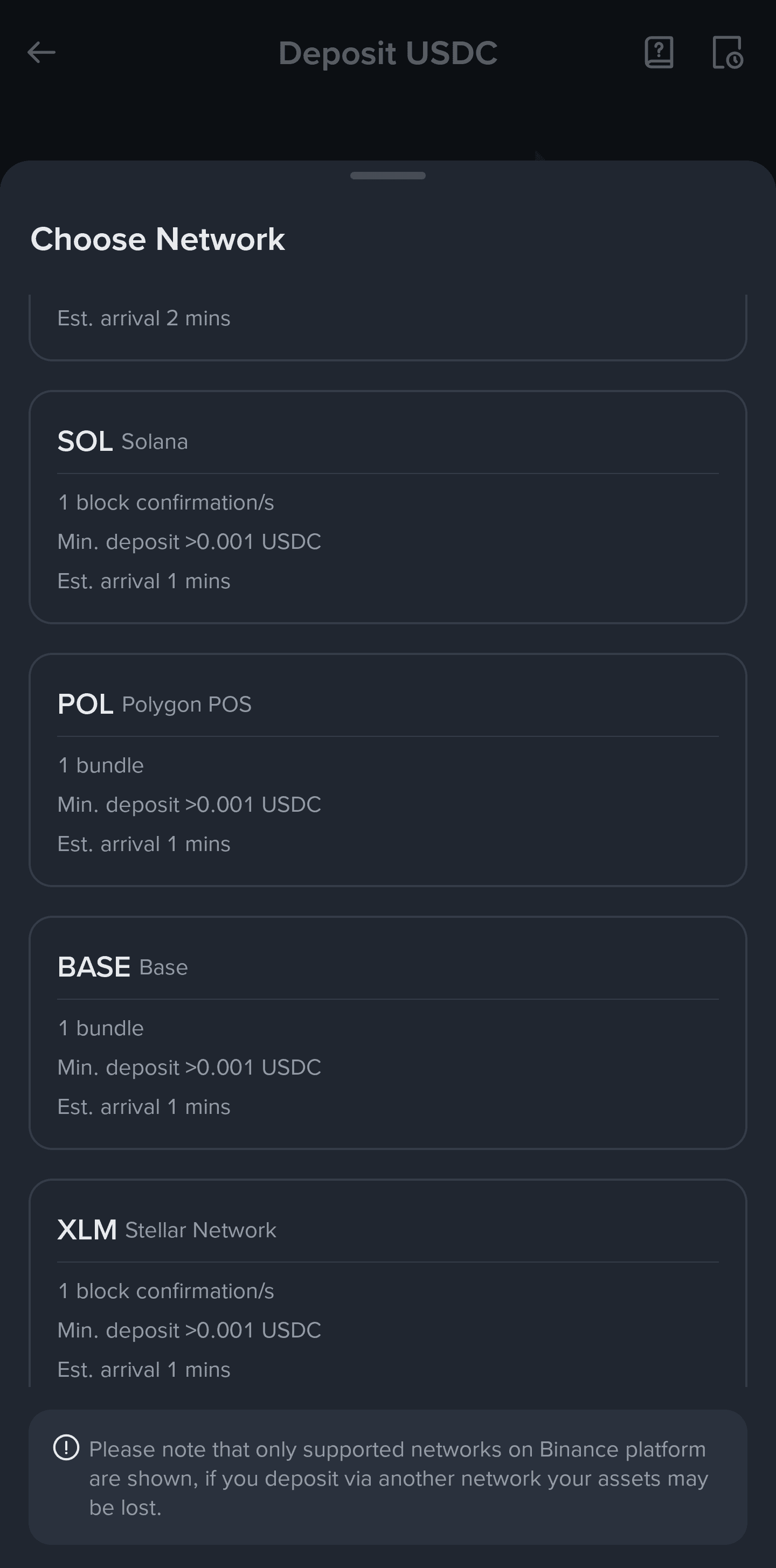
You may need to scroll down to find Base.
Step 5: Copy the deposit address
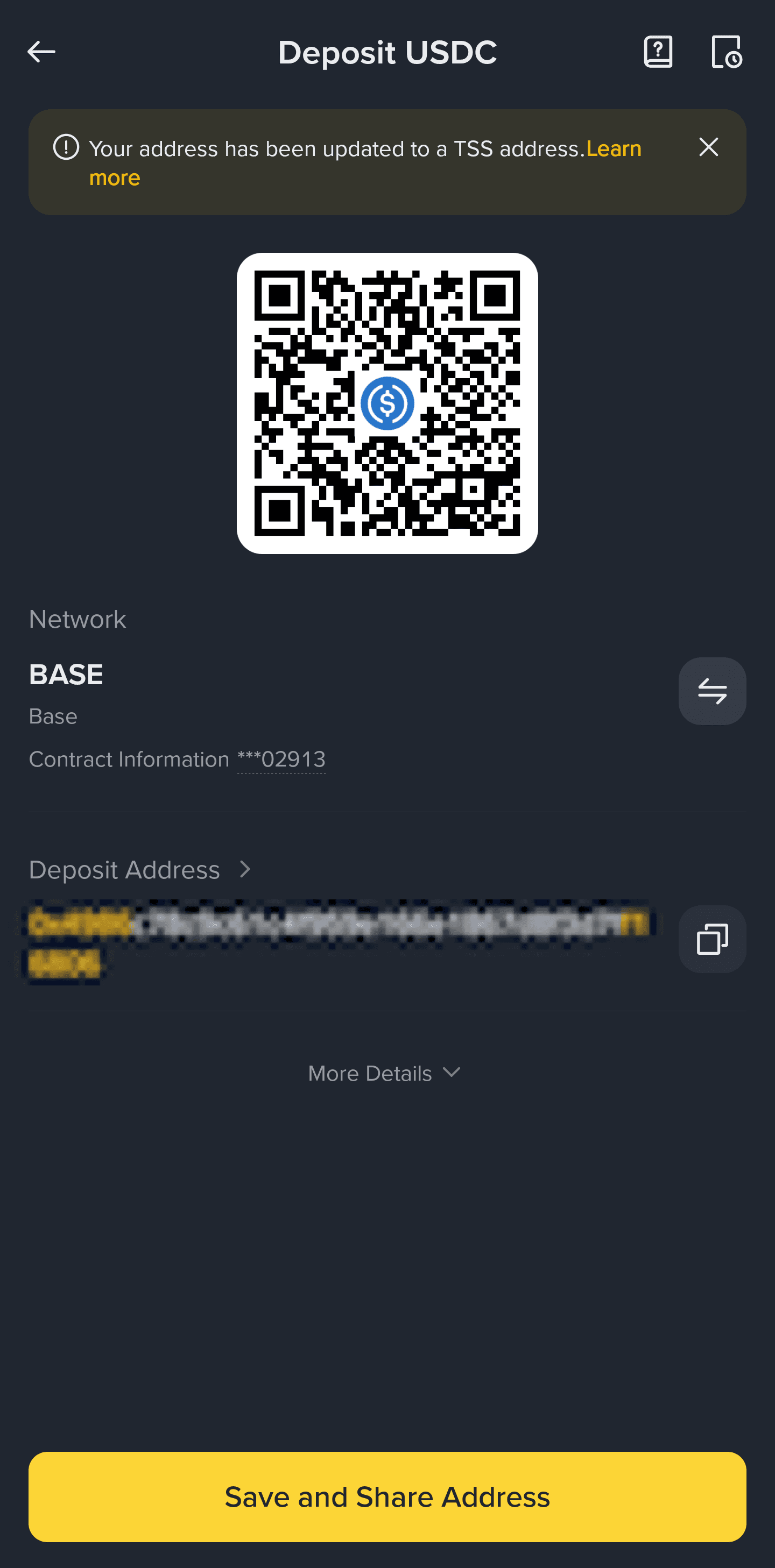
Step 6: Enter the address in Plantee
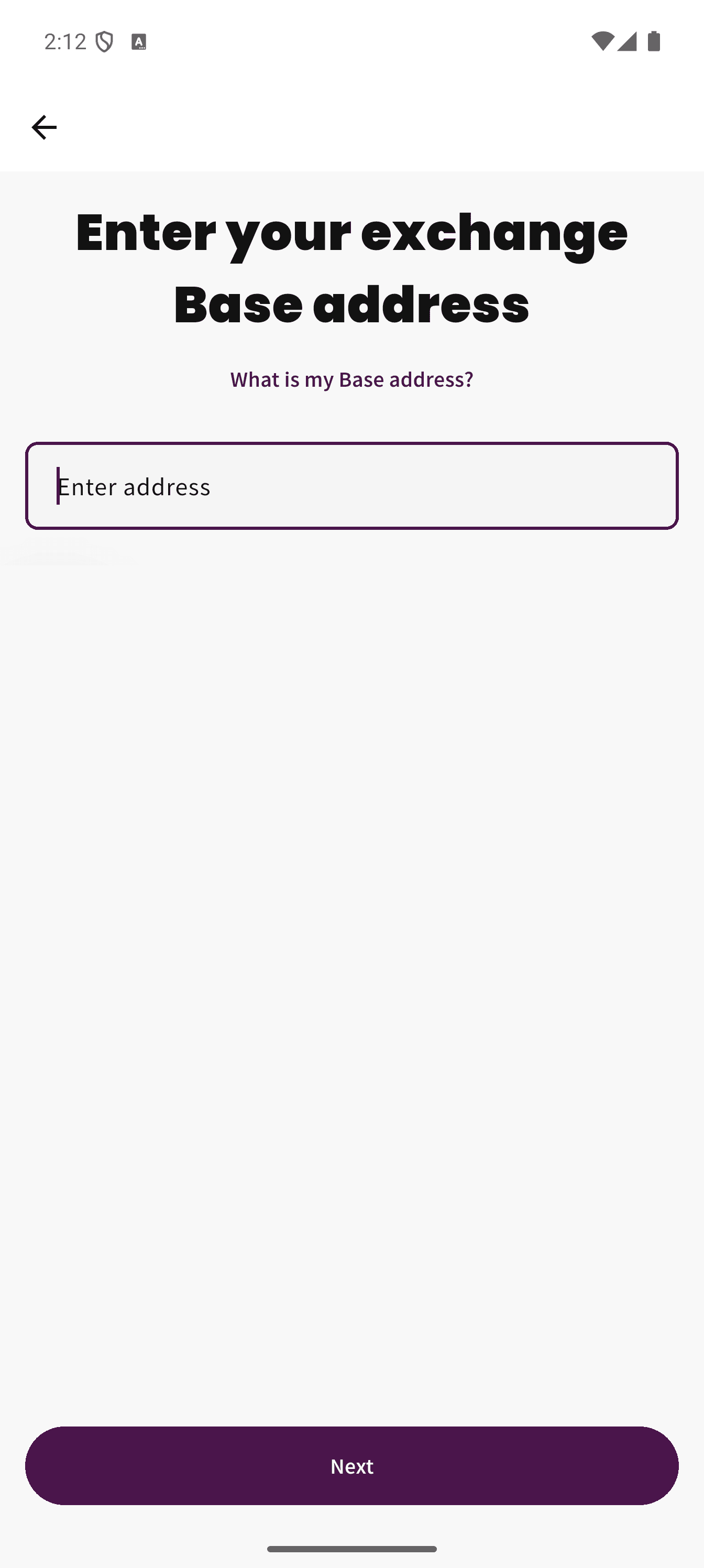
Paste the copied Binance address into the Plantee crypto exchange address screen.
Note
This guide is based on the Binance mobile app as of March 12, 2026 and may change if Binance updates its app. If the flow looks different in your app, contact Binance support for help finding the correct Base deposit address. This article is a general guide only.